Incident response
The life of an incident
What happens from the first alert to the all-clear, and what actually stops the paging.
Think of WarnFire as a persistent phone tree. When something breaks, it follows the configured escalation path until a person acknowledges, the incident resolves, or the policy is exhausted.
An incident can occupy three states. Every incident starts Triggered; Acknowledged is optional when the problem resolves before a person accepts ownership, and Resolved is terminal:
1. Triggered — “something is wrong”
A monitoring system reports a problem, and WarnFire opens an incident. It looks up who is on call, takes a snapshot of the escalation plan, and starts paging on the channels selected for each step. When selected, push gets the first opportunity, email and SMS follow within the step, and voice follows later. If the incident still meets the step’s continuation condition when its wait time ends, WarnFire moves to the next step. See How each person is paged for the exact timing and paid-channel consequences.
If the same problem is reported again while the incident is open, WarnFire recognizes it (using its dedup key — a label that identifies the problem) and adds an update to the existing incident instead of opening a duplicate. That update does not start a second escalation merely because it arrived. A policy can still contact the same responder through later configured steps or channels.
2. Acknowledged — “a person owns this”
Acknowledging is a person saying “I’ve seen it, I’m on it.” It stops the phone tree.
An authorized human can acknowledge through these surfaces:
- A responder captured on the incident’s escalation plan can acknowledge in the mobile app, confirmed with Face ID, Touch ID, or passcode.
- A tenant owner or administrator can acknowledge any incident in that workspace with Acknowledge in the web console.
- A linked Slack responder authorized for the incident can use its Acknowledge action.
- The responder receiving a targeted voice page can acknowledge with the documented keypad action during the call.
Two things that deliberately do not stop the paging:
- An “acknowledge” sent by a machine. If your monitoring system sends an acknowledge event, WarnFire writes it into the incident’s history — but keeps paging. Software saying “noted” is not the same as a person taking ownership.
- Anything from an unauthorized person. Each surface checks the workspace, incident, and responder or console role before accepting the action.
If every step runs out without anyone acknowledging, the incident is marked escalation exhausted. It stays open and highly visible — it just has no one left to page.
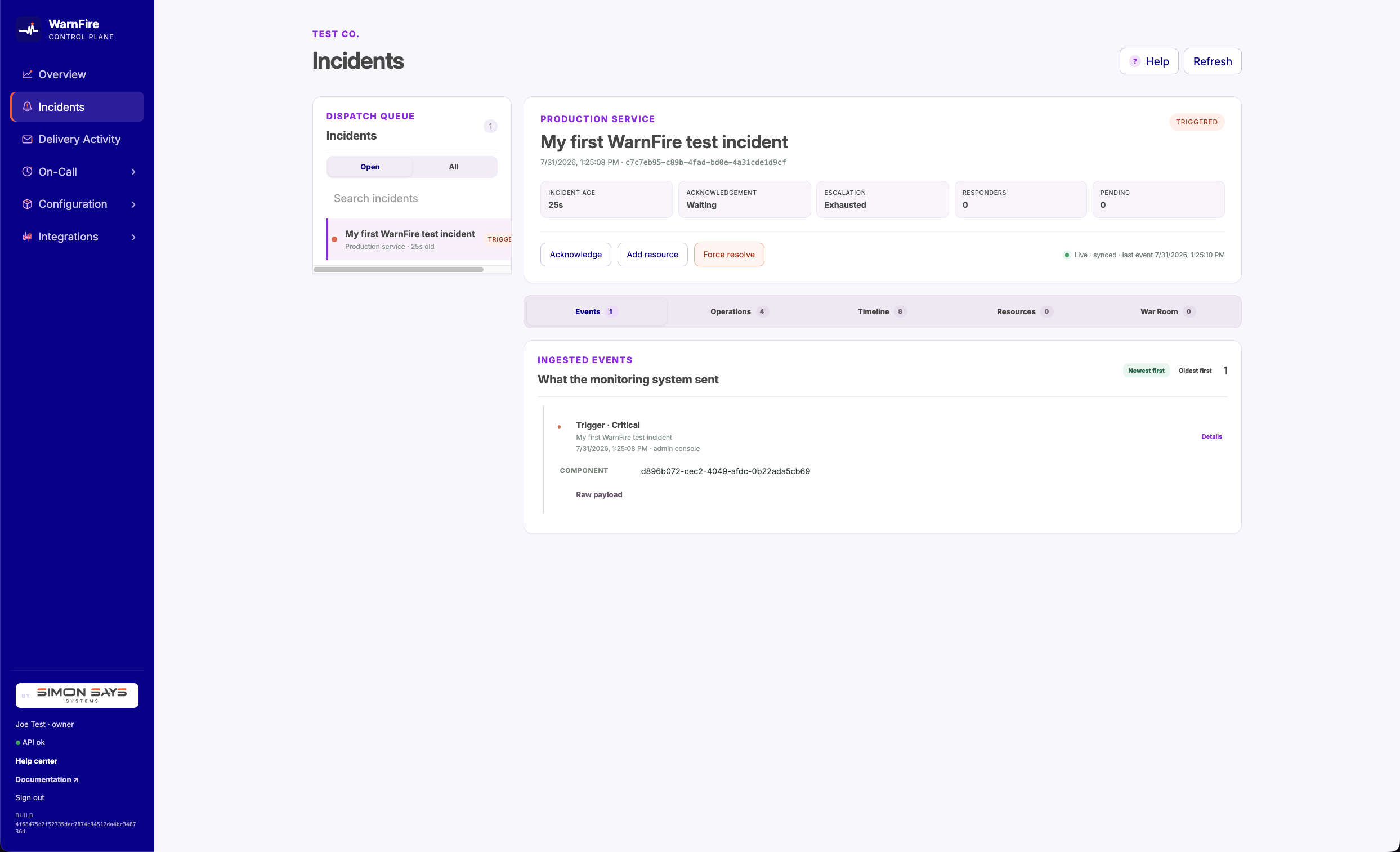
An incident remains open when every escalation step finishes without acknowledgement.
3. Resolved — “the problem is fixed”
Resolving closes the incident. It can come from three places:
- Your monitoring system notices the problem has cleared and sends a resolve event (Alertmanager does this automatically when you enable
send_resolved). - A responder on a live voice page chooses the resolve option from the call’s keypad menu.
- An authorized operator uses Force resolve in the console and supplies a reason.
Once resolved, the incident and its history remain available subject to workspace deletion and WarnFire’s applicable data-retention policy. If the same problem happens again later, a fresh incident is opened.
Force resolution is an operator override
Use Force resolve when WarnFire is stuck open—for example, when the monitoring system recovered but its resolution notification was lost. The confirmation warns that escalation will stop and that another firing notification will open a new incident. WarnFire requires a reason and records the operator, reason, and number of signals that were still firing in the incident timeline.
The operation closes the incident and its currently attached signal generations together. It does not silence or disable monitoring. If the provider still reports the condition as firing, the first notification received after force resolution creates a successor incident and starts paging again; additional identical retries attach to that successor instead of creating more incidents.
For Alertmanager specifically, an unchanged scheduled repeat and a delayed retry are indistinguishable because its webhook supplies neither a delivery ID nor a notification timestamp. WarnFire chooses the safer behavior and reopens on the first post-resolution firing receipt. To keep a known condition from paging temporarily, use a maintenance window or an Alertmanager silence rather than repeatedly force-resolving it.
The incident history
Every incident keeps a chronological timeline of what happened and when: when it triggered, who was paged on which channel, who acknowledged, what updated, and when it was resolved. A force-resolution entry also records who performed it, why, and how many signals were still firing. The timeline remains subject to workspace deletion and WarnFire’s applicable data-retention policy.
The escalation plan is frozen the moment an incident opens. Editing your schedules or policies afterward affects future incidents, never one already in flight — so the record always shows the plan that actually ran.
One quiet exception: maintenance windows
If you’ve scheduled maintenance for a service, incidents still open and record everything — but paging politely waits until the maintenance window ends. The incident shows “Paging paused for maintenance” with the resume time. See Maintenance windows .
When an active incident needs more people than the frozen escalation plan provides, build the response team without changing who is on call.