Console administration
Verify configuration readiness
Clear paging-path blockers, send a real test alert, and verify the incident from dispatch through resolution.
Configuration ready means every enabled service has a reachable escalation path. It proves that WarnFire can construct a paging plan; the test alert proves that the complete delivery and response path works.
Before you begin
Any enabled console role can review readiness. You need tenant-owner or tenant-administrator access to follow a Fix → action or send the end-to-end test.
Create an enabled service and integration key with an enabled policy, schedule, and responder. Tell the on-call responder that the test sends a real page. Check the service policy’s resolved targets and channels first: SMS and voice consume allowance or prepaid credits for every destination contacted.
Clear readiness issues
- Open Overview.
- Read Configuration readiness at the top of the page.
- For every blocking issue, select Fix →. WarnFire opens the affected person, team, schedule, policy, or service page.
- Correct the configuration, return to Overview, and select Refresh.
- Review any remaining warnings. Warnings do not make the paging path unreachable, but they can identify operational risk that should be understood before cutover.
- Continue only when the banner says Configuration ready.
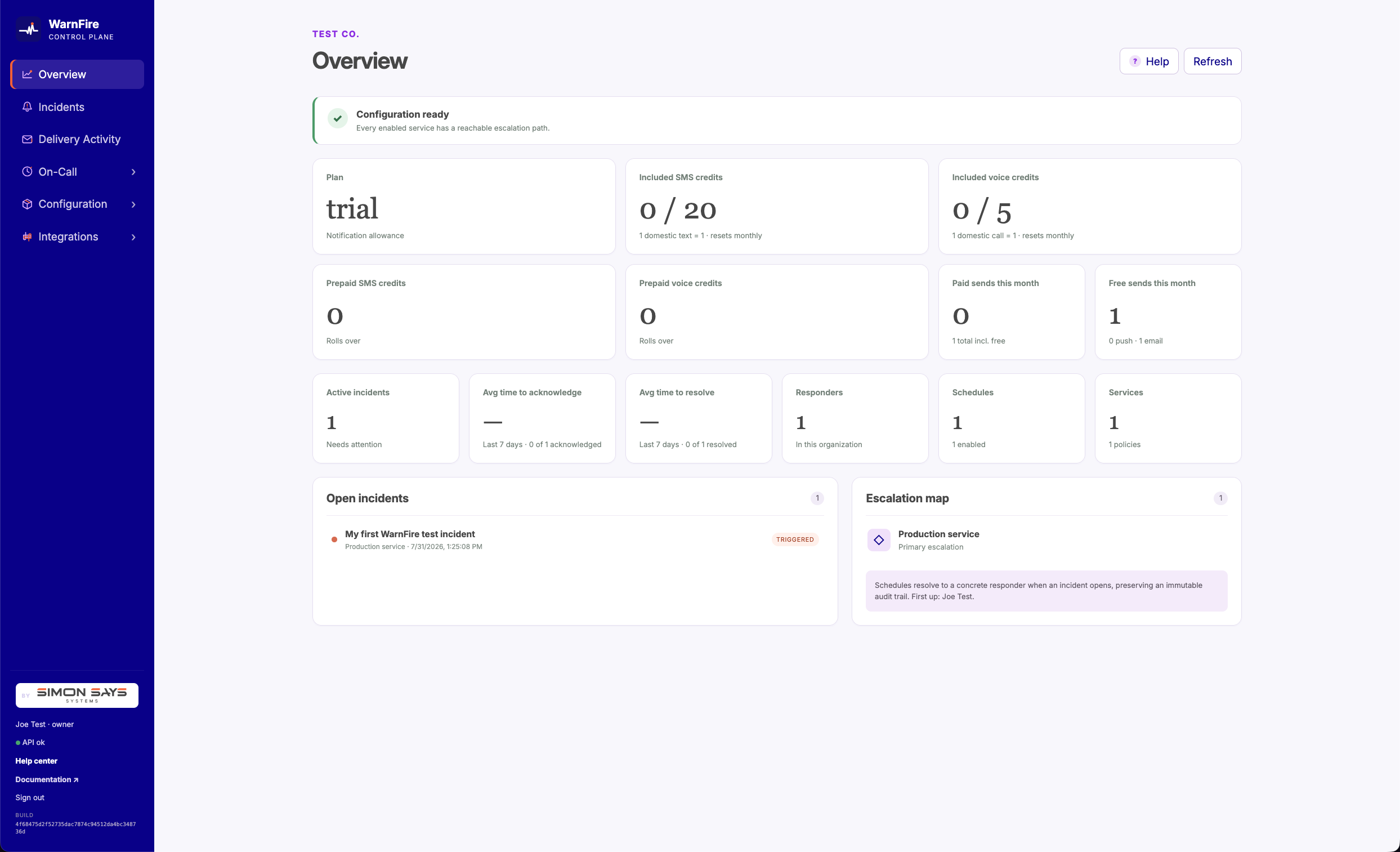
Configuration ready confirms that every enabled service has a reachable escalation path.
Run the end-to-end test
- Open Configuration → Services.
- Find the service and select Send test alert.
- WarnFire opens the resulting incident. Confirm its service, summary, escalation plan, and first delivery attempt.
- Have the expected responder acknowledge the page in the mobile app, web console, or an authorized Slack action.
- Confirm that the incident changes to Acknowledged and that the activity record names the responder.
- When the test is complete, select Force resolve, enter a reason that identifies it as a readiness test, and confirm that the incident closes. This is an operator override; normal production incidents should close from the monitoring system’s resolve signal.
If delivery or acknowledgement fails, do not leave the test incident open. Use Force resolve with a failure-specific reason, retain the incident and request identifiers, then follow the troubleshooting link below.
Verify it worked
The test passes only when all of these statements are true:
- Overview still says Configuration ready.
- The test incident belongs to the intended service and contains the expected frozen escalation plan.
- The intended responder received and acknowledged the page.
- The incident activity records the acknowledgement and resolution.
- Delivery Activity shows the strongest evidence available for each attempted channel; provider acceptance alone is not treated as receipt.
If any statement fails, use the troubleshooting checklist before relying on the service for production paging.
Next steps
- Review Delivery Activity for provider, device, and failure evidence.
- Read the incident lifecycle before running a production response.